Family photo
A family photo with everyone in it
The yearly family picture, the reunion, the photo on the fridge. Add the grandparent, parent, brother or sister who is missing from it, or the dog who always found a way into the shot.

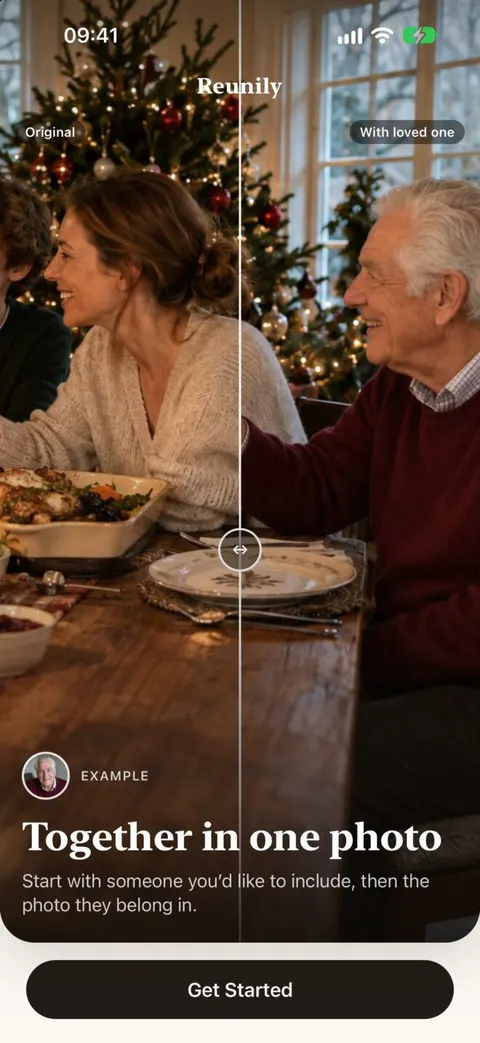
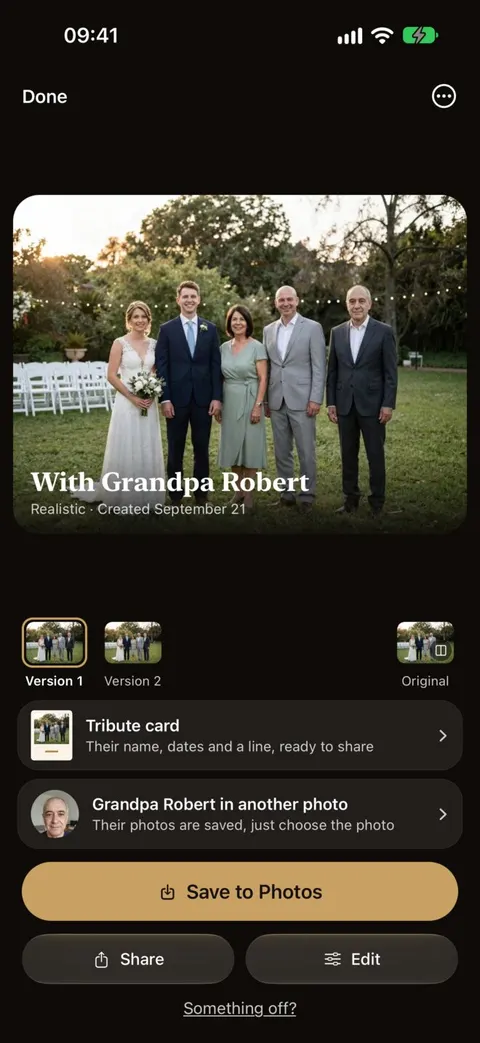
Grandma and Grandpa in this year’s photo
The family photo changes every year, and the first one without a grandparent can feel unfinished. Pick this year’s picture, add their photo, and tap where they always stood: in the middle, or at the end beside their partner. Choose Arm around if that is how they always posed.
The app screens above are design previews of Reunily, not a real family.
A mom or dad who is missed
For grown children, the picture that feels empty is often the one with their own kids: three generations, one short. Use a clear photo of your parent from a time you want to remember. Reunily keeps their face as it is in that photo and does not try to age it.
A brother, a sister or a child
Some families want a son or daughter they lost to be in the picture with their brothers and sisters. It is a tender thing to do and there is no right way to go about it. Take your time, try more than one photo if the first doesn’t feel right, and share it only when you are ready.
Reunions and big groups
Large groups work when faces are clear and there is a natural gap. If the group is huge, crop the photo to the part where your loved one would stand before you start. The result will be sharper and the placement more natural.
The family dog, too
Pets are family. Choose a pet instead of a person, add a photo where you can see their face and markings, and Reunily places them at the right size for where they sit or stand, with a soft shadow on the ground.
In this example, a golden retriever with a red collar joins a wedding group, with his coat color, markings and collar kept.
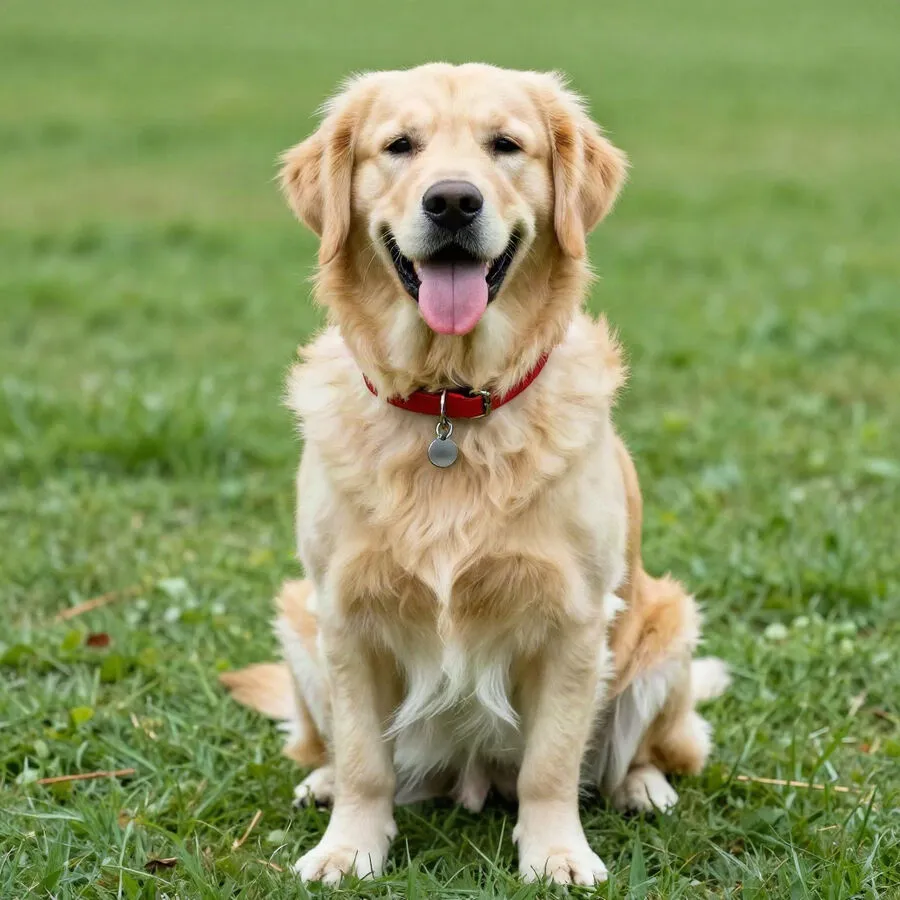
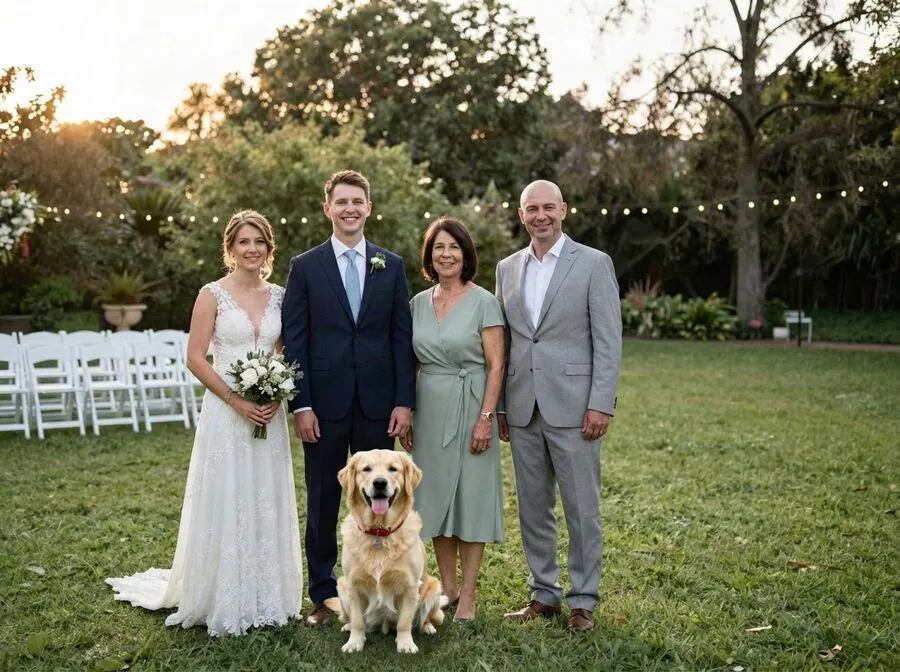
Staged photos of a synthetic family and dog.
Choosing the family photo
- Even light. Open shade or a bright room works better than harsh midday sun or a single lamp.
- Room to stand. A little space at the end of the row, or behind the people sitting in front.
- Faces toward the camera. The same goes for your loved one’s photo.
- The original file. Use the photo from your camera roll rather than a screenshot or a copy sent through a messaging app.
Family photo questions
Can I add more than one person?
One loved one per portrait. For two, add the first, save the result, and use it as the photo for the second. Each step uses one credit.
Will they look the age they are in their photo?
Yes. Reunily keeps the face from the photos you give it and does not age or “update” it. Choose the photo that shows them the way you want to remember them, and use photos from about the same time if you add more than one.
Can I use an old or black-and-white photo of them?
Old prints and low-resolution scans can work well; there is an example on our graduation page. The clearer the face, the better the likeness. If you have a second photo, add it.
How big can the family group be?
Reunily does best when faces are clearly visible. Groups of up to about six people are what we have tested most. For a big reunion photo, it can help to crop to the part of the group where they would stand.
Does it change anyone else in the photo?
It is told to keep everyone else, their faces, clothes and poses, exactly as they are. Look closely at the result anyway. If something changed that should not have, tap “Something off?” for a free retry.
Everyone in this year’s picture
Choose a photo, add your loved one, pick a look. Every portrait comes with two versions to choose from.