Guide
Tested AI prompts for adding a loved one to a photo
These are the prompts behind Reunily. We tested them across image models before building the app. Copy them into an AI tool that edits images, or skip the prompt and use the app.
Which AI to use
In September 2026 we ran 60 test edits across eight image models, through their APIs, using only synthetic photos (no real people). Each result was scored for likeness, for whether the original photo stayed unchanged, and for realism. Two findings matter if you are doing this yourself:
- For a realistic result, use a Google Gemini image model (the “Nano Banana” family). It kept the added person’s face the most consistently, and it was fast, around 13 seconds.
- GPT image models kept the rest of the photo best, but not the face. OpenAI’s GPT Image left the original photo almost untouched, but with a plain reference photo it drew someone who looked like a relative of the man rather than the man himself. It was excellent for painting styles, which is why we use it only for the second pass below.
Before you paste
- Upload the main photo first and their photo second. The prompt calls them “image 1” and “image 2”.
- Keep the aspect ratio. If the tool lets you pick one, choose the same shape as your main photo. On “auto”, models sometimes take the shape of the portrait instead and crop your photo.
- Leave out words like “deceased” or “passed away”. The model does not need to know, and “the person in image 2” is all it needs. We saw no refusals in testing, but those words add nothing to the edit.
- Check the app’s data settings before uploading family photos. Some consumer AI apps keep uploads and use them to improve their models unless you turn that off.
The main prompt
Here it is, filled in for the example below. Each sentence has a job.
Edit image 1, a wedding group of four standing on a lawn at sunset. Add the person from image 2 (an older man with short grey hair). Place him standing at the right end of the group, next to the man in the grey suit, at the same distance from the camera as the others.
Their face must match image 2 exactly: same face shape, eyes, nose, mouth, wrinkles and hairline; do not beautify, age or restyle the face.
Match the scene: warm low sunlight from behind the trees; eye-level camera; the same color grading, sharpness and grain as image 1, feet and contact shadows consistent with the others.
Keep every original person (the bride, the groom, the woman in the green dress and the man in the grey suit), their faces, poses and clothes, and the background completely unchanged. Photorealistic, it must look like one original photograph.
- What to add, and where. Describe the photo in a few words, the person briefly, and a concrete spot: “at the right end, next to the man in the grey suit”. Saying “at the same distance from the camera” prevents a giant or a tiny person.
- The face. Without this line, models tend to smooth, beautify or age the face. This is the most important sentence.
- The light. Name the light you see in the photo, then ask for matching grain, sharpness, feet and shadows. This is what stops the pasted-in look.
- What must not change. Name the people who are already in the photo. Models are much better at leaving them alone when they are listed.
The same prompt as a template to fill in:
Edit image 1, [what the photo shows]. Add the person from image 2 ([a short description of them]). Place them [where, next to whom], at the same distance from the camera as the others.
Their face must match image 2 exactly: same face shape, eyes, nose, mouth, wrinkles and hairline; do not beautify, age or restyle the face.
Match the scene: [the light, e.g. soft window light from the left]; [the camera, e.g. eye-level phone photo]; the same color grading, sharpness and grain as image 1, feet and contact shadows consistent with the others.
Keep every original person ([list them briefly]), their faces, poses and clothes, and the background completely unchanged. Photorealistic, it must look like one original photograph.
If their only photo is casual and the scene is formal, you can add a clothing line, for example wearing a dark suit, after the placement sentence.
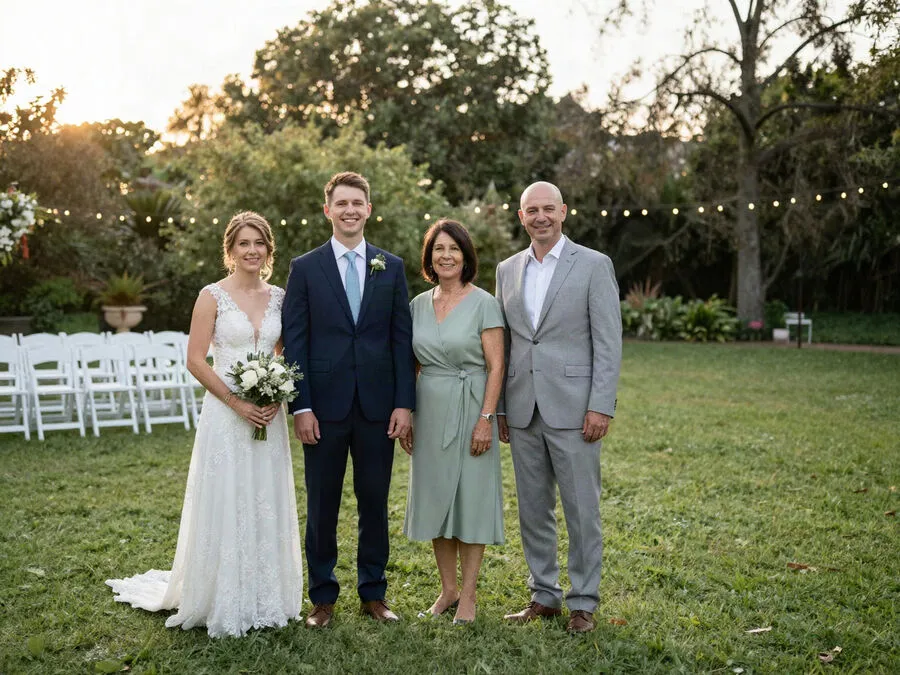

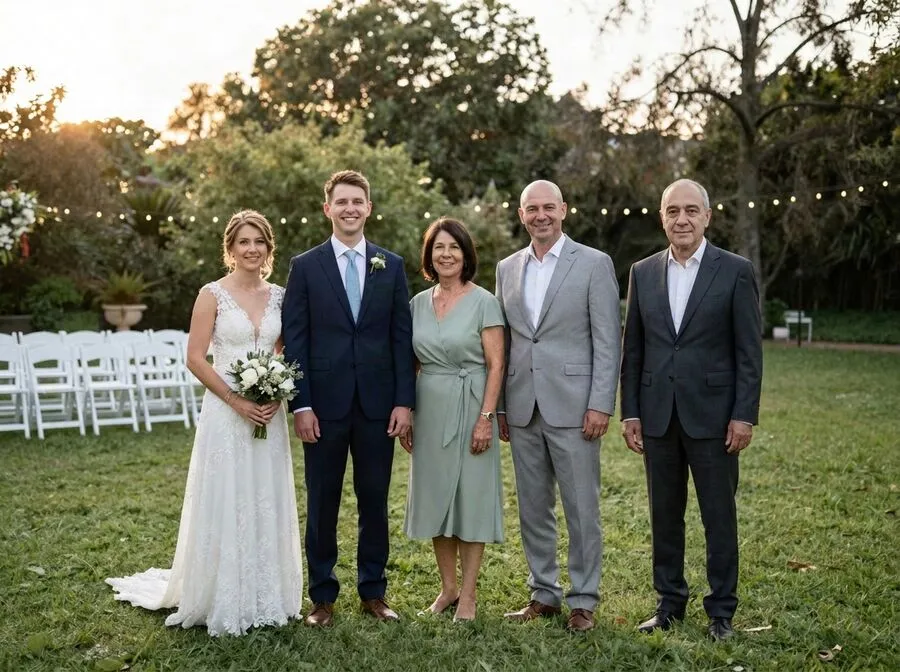
Made with this prompt through Google’s Gemini image model via its API, on staged photos of synthetic people. Consumer apps may add their own processing, so your results can differ.
Old photos, pets, sepia and sketch
If their photo is old or low resolution
Add this after the face sentence. In our test, a 404 × 520 pixel scan came out sharp and still recognizable:
Image 2 is an old or low-resolution photo: render the person as a clean, sharp photo that matches image 1 without changing the face.
For a pet
Edit image 1, [what the photo shows]. Add the [dog / cat] from image 2 ([a short description]) [where]. Keep its fur color, markings, face and collar exactly as in image 2. Correct size for the distance, paws on the ground, a soft contact shadow, [the light], the same color grading and grain. Keep every person and the background completely unchanged. Photorealistic, it must look like one original photograph.
Vintage sepia or pencil sketch
Add one of these at the end of the main prompt. A single pass works for both.
Finally render the whole photo as a vintage sepia print from the 1950s: warm brown monochrome, soft vignette, gentle film grain and slightly faded highlights; every face stays recognizable.
Finally render the whole image as a detailed graphite pencil sketch on off-white paper with fine hatching and soft shading, no color; the composition stays identical and every face stays recognizable.
Oil painting and heavenly light: two passes
Asking for a painting in the same prompt as the edit did not work: in our tests, the Gemini model ignored the painting style three times out of three, and drew a half-transparent figure when asked for a heavenly glow. What works is two passes. First make the realistic photo with the main prompt. Then start a new chat, upload only that result, and use one of these:
Turn this whole photo into a classical oil painting on canvas: visible thick brush strokes and impasto texture everywhere, rich warm palette, soft painterly light. Keep the composition, poses and every face exactly recognizable; no part of the image may look like a photograph.
Give only the [older man in the dark suit] (the person at [the right end of the group]) a gentle heavenly look: a soft warm rim light around their outline, soft golden light rays falling behind them from [the upper right] and a subtle dreamy haze around them. They stay solid, opaque and fully visible; their face stays exactly the same. No wings, no halo ring, no transparency. Everything else in the photo stays unchanged.
Keep “solid, opaque” and “no transparency” in the heavenly prompt. Without them, models drift toward a ghost.
What we tested, and what we didn’t
- All test photos were synthetic, and each result was scored by one reviewer. Treat this as a well-tested starting point, not a guarantee.
- We did not test large groups of more than six people, very small faces, or black-and-white scenes.
- Expect to run the prompt two or three times. Look at the face at full size before you share it.
Or skip the prompt. Reunily writes the placement, light and camera lines for you by reading your photo, keeps the aspect ratio, runs the two passes for painted looks, and gives you two versions per portrait. If a portrait fails, it is refunded automatically. See how Reunily works.