Guide
How to add a loved one who has passed to a photo on iPhone
There are three ways to do it on an iPhone: an app built for it, a general AI chat tool with a good prompt, or a manual collage. Here is how each one works, what it costs and how natural the result looks.
1. Choose the two photos
Whichever way you choose, you start with two photos: the one you want your loved one in, and one of them. The choice of photos matters more than the tool.
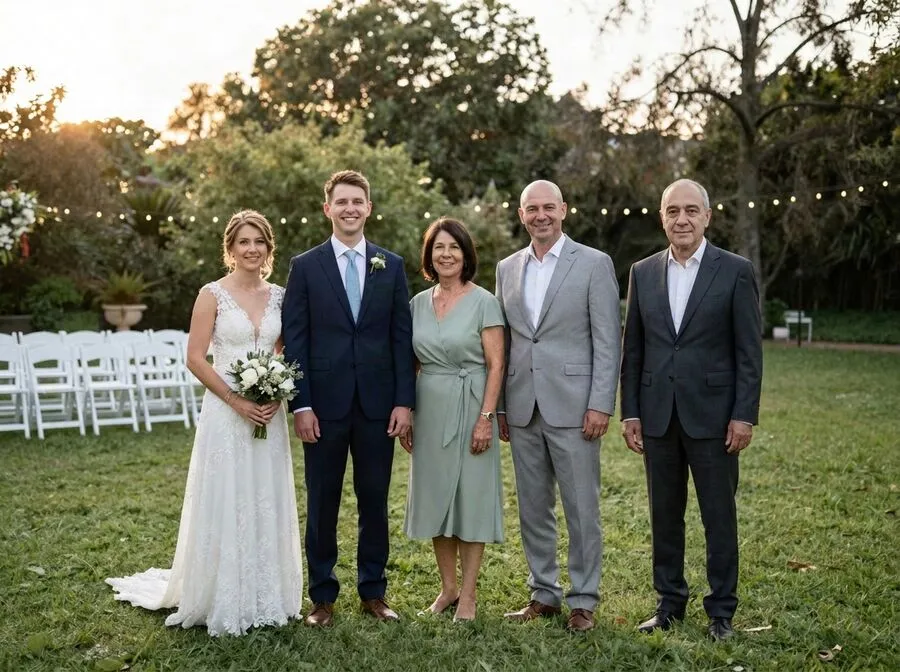
- The main photo should show everyone clearly, in fairly even light, with a little room where your loved one can stand.
- Their photo should be sharp, with the face toward the camera and nothing covering it: no sunglasses, no hand in front of the face.
- Old prints are fine. Lay the print flat near a window, out of direct sun, and photograph it straight on with the Camera app. Fill the frame and avoid glare.
- Use originals. A photo from your camera roll is better than a screenshot or a copy forwarded through a messaging app, which is usually compressed.
2. The app way: Reunily
Reunily is our iPhone app, made for exactly this. It reads the photo for you: who is in it, where the light comes from, where there is room. It then places your loved one at the right scale with matching light, grain and shadows. It takes about two minutes.
- Open Reunily and tap Create. Choose the main photo from your library. The app uses the system photo picker, so it sees only the photos you pick.
- Add your loved one. Choose one to four photos of them. The app checks each one for a clear, sharp, front-facing face. Give them a name, and switch on In memory if you like.
- Show where they belong. Leave Let AI choose the spot on, or turn it off and tap where they should stand. Pick a pose: standing beside, arm around, seated or holding hands.
- Choose a look. Keep it real for a photograph, or an artistic look such as soft sketch, oil painting or vintage film.
- Tap Create Portrait. You get two versions, usually within a minute or two. You can close the app, and a notification tells you when it is ready.
- Save the one you like to Photos, share it, or make a tribute card. If the face or the placement is off, tap Something off? for a free retry.
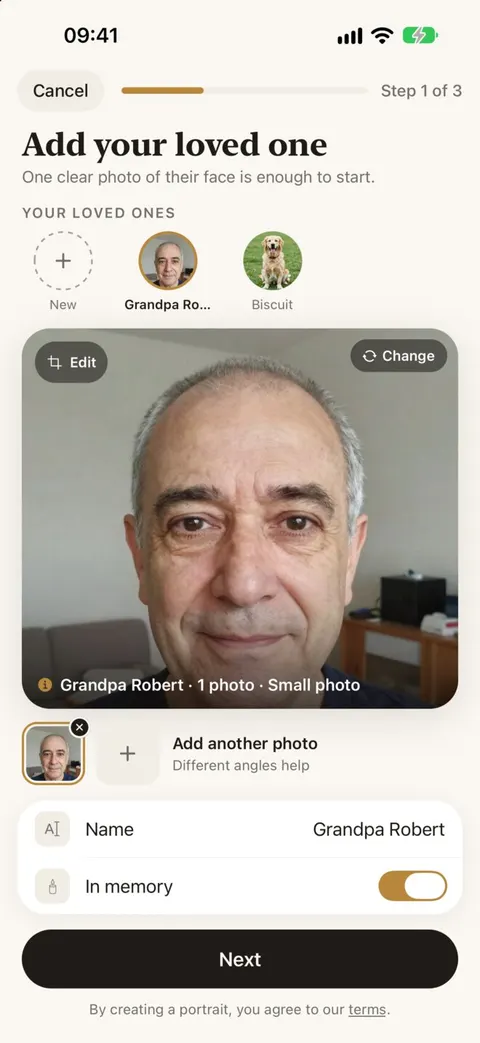
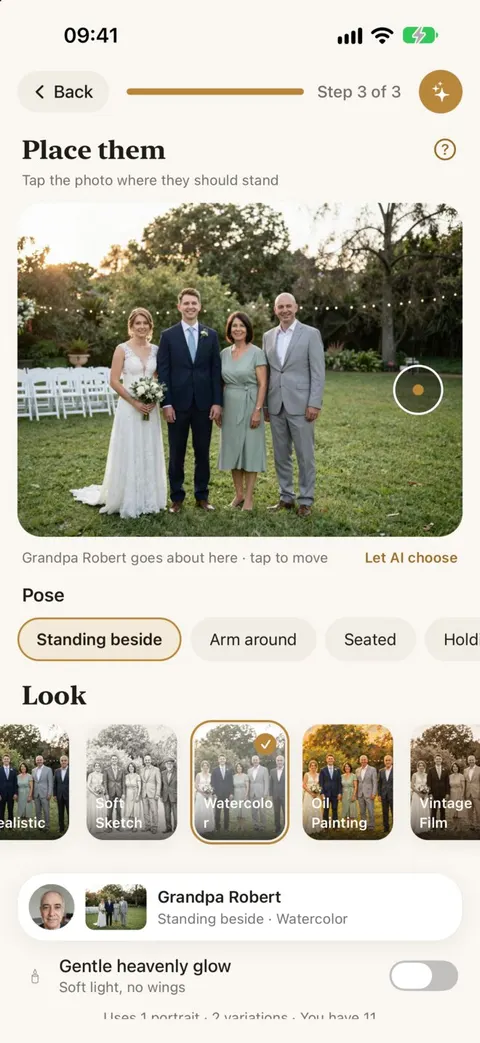
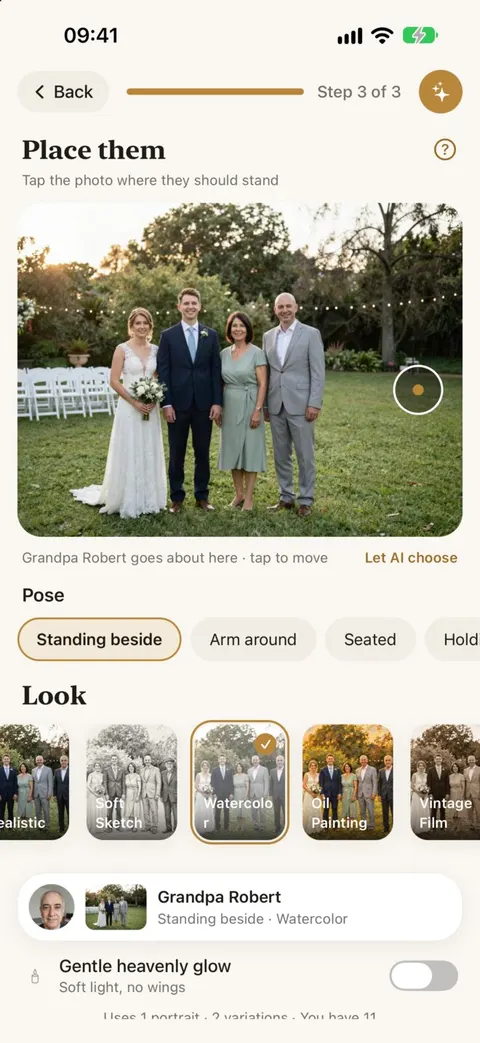
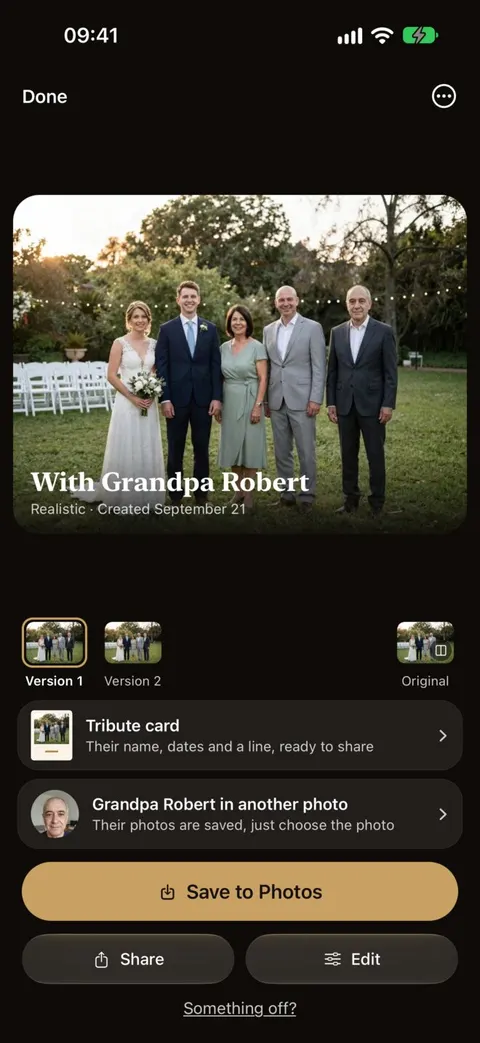
App screens are design previews with a fictional family.
Cost: there is no free trial. Credits come in packs, from $4.99 for 5 ($1.00 per credit) down to $0.50 per credit in the 50-credit pack. One credit makes one portrait, and each portrait gives you two versions. Failed portraits are refunded automatically. See pricing.
Privacy: uploads are deleted after 30 days and never used to train AI. Read the privacy policy for the full list of companies involved.
3. The AI chat way: Gemini or ChatGPT
General AI assistants with image editing can do this too, if you give them a careful prompt. In the app, upload your main photo first and your loved one’s photo second, then paste a prompt that says who to add, where, and what must not change.
We tested this in September 2026 through the models’ APIs, using synthetic photos. Google’s Gemini image model kept the added person’s face noticeably better. OpenAI’s GPT Image model kept the rest of the photo more precisely, but with a plain reference photo it tended to draw “a similar relative” rather than the same person. Our tested prompts guide has the full prompt we use and explains each line.
Check the data settings first. Consumer AI apps may keep your conversations, and your photos with them, and some use them to improve their models unless you turn that off. Look for the history or “improve the model” setting before you upload family photos.
4. The manual way, free
You can make a simple collage on your iPhone without any AI:
- Open your loved one’s photo in the Photos app. Touch and hold them until a glowing outline appears, then tap Copy. This is iOS’s built-in “lift subject from background”.
- Open the main photo in an app that lets you layer images, such as a collage or photo-editing app, and paste them in.
- Resize and move them into place, then save the result.
It is free and your photos stay on your phone. But the light, scale, color and shadows won’t match, so it will look like a cut-out. For a collage or a memory board, that can be exactly right. For a photo that looks like one moment, it takes real editing skill, or a professional retoucher, which usually costs more per image and takes days.
5. Which way to choose
| Way | Cost | Time | How natural | Your photos |
|---|---|---|---|---|
| Reunily app | $1.00 to $0.50 per credit (1 portrait, 2 versions) | About 2 minutes | Matched light, scale, grain and shadows | Deleted after 30 days, never used for training |
| AI chat tool | Free tier or subscription | Minutes, plus retries | Depends on the model and the prompt | Depends on the app’s data settings |
| Manual collage | Free | 15 to 60 minutes | Looks cut out unless you are skilled | Stay on your phone |
| Professional retoucher | Priced per image | Usually days | Can be excellent | Sent to a person |
6. If the result doesn’t look right
- The face isn’t quite them. Add more photos of them, especially a clear front-facing one. Heavy compression and sunglasses hurt likeness most.
- They look too big or too small. Tap a different spot: nearer the others for the same size, further back for smaller.
- The light looks off. Scenes with harsh midday sun or one strong lamp are the hardest. A photo taken in open shade or by a window works better.
- Someone else changed. In Reunily, tap Something off? for a free retry.